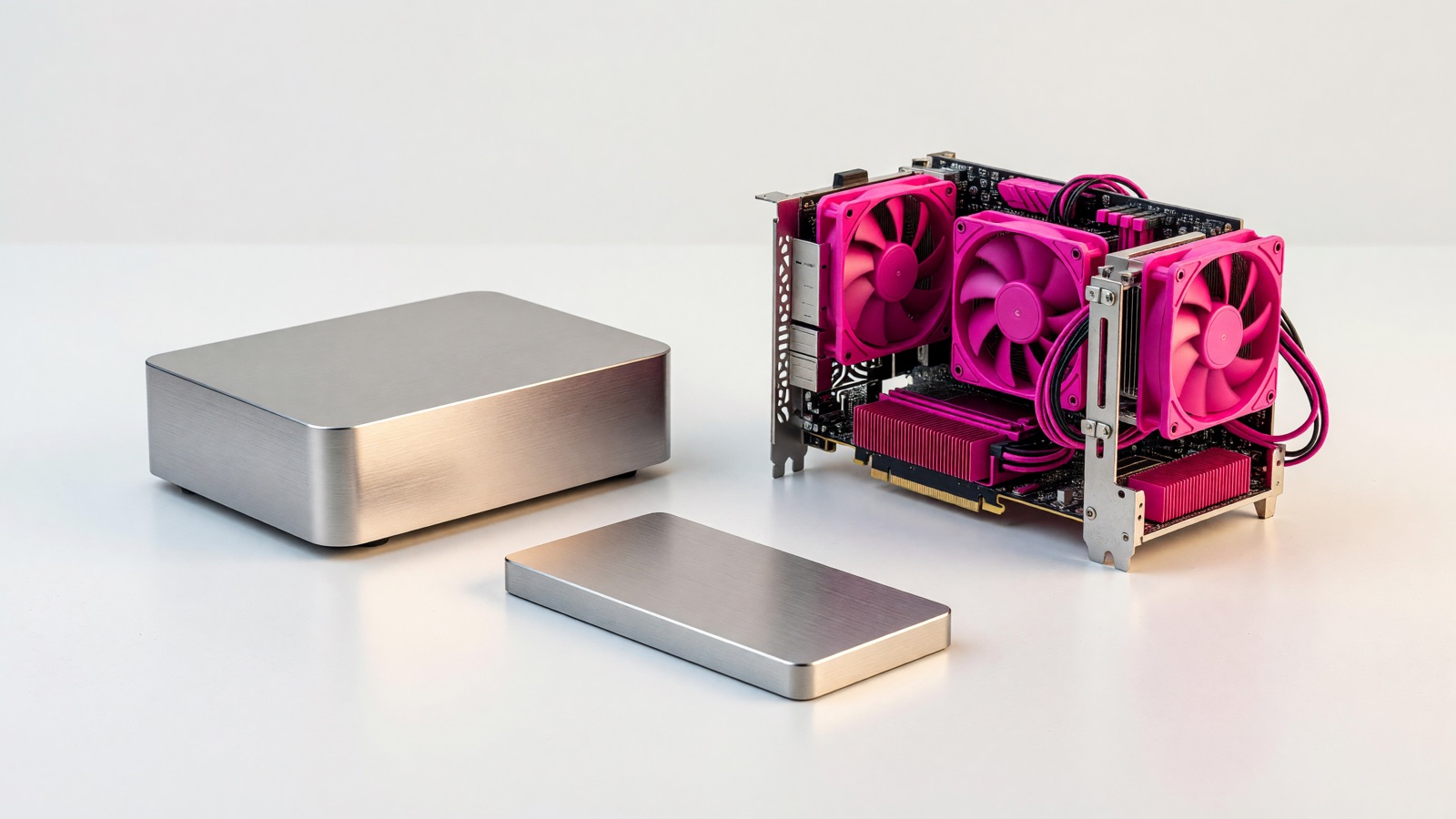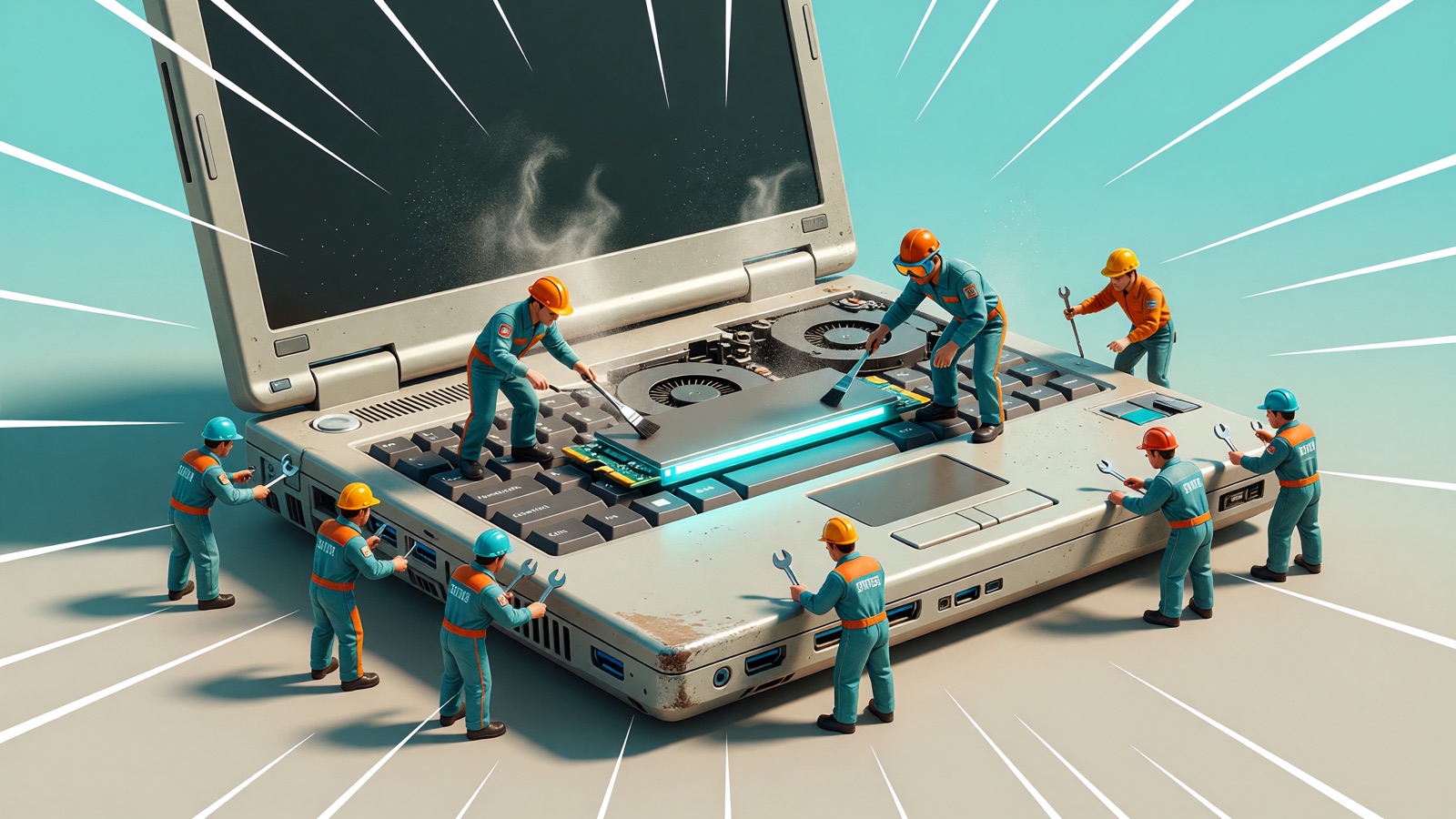
An old laptop is usually slow for three reasons: Windows still lives on a mechanical hard disk, too much software starts before the desktop appears, and the browser is holding more memory than the machine has to give. Swapping the boot drive for an SSD fixes more of it than any other single change.
The lid opens. The fan comes on. The cursor is a spinner for a minute, then two. Mail is still loading when you already need the spreadsheet. You start thinking the machine is finished.
It might be. A lot of the time it is not. The usual culprits are a spinning hard disk, programs that launch at login, and a browser that uses more memory than the rest of the system. Do not buy another computer until you know which of those you actually have.
Why is my old laptop so slow?
The usual cause on a 2015 to 2018 machine is the boot drive. Windows waits for a platter to spin and a head to find each file, and that wait repeats on every boot, every app launch, and every window switch. Memory and heat come after that.
If the laptop shipped between about 2015 and 2018, there is a real chance the boot drive is still a mechanical hard disk. Windows waits for a platter to spin and a head to find a file. That wait stacks up every time you boot, open Word, or switch apps.
You do not have to open the chassis. On Windows, press Ctrl+Shift+Esc, open the Performance tab, and click Disk. Many builds label the media as SSD or HDD. If that label is missing, search for Defragment and Optimize Drives and read the Media type column. In PowerShell, Get-PhysicalDisk prints the same fact.
A 2018 Principled Technologies test on mainstream Windows 10 laptops ($300 to $800) is still the cleanest boot-and-launch comparison I trust. It is eight years old and it is Windows 10. The pattern has not inverted.
| Task | HDD average | SSD average |
|---|---|---|
| Fast startup to usable Windows | 47.4 seconds | 16.1 seconds |
| Wake from standby | 8.9 seconds | 2.5 seconds |
| Launch Excel | 3.4 seconds | 2.2 seconds |
| Launch PowerPoint | 3.0 seconds | 2.3 seconds |
HP’s current SSD vs HDD page puts everyday boot in a similar band: about 30 to 40 seconds on a hard disk, 10 to 15 on an SSD. Sequential transfer is listed as 30 to 150 MB/s for HDDs and 500 to 3,500+ MB/s for SSDs. PCMag notes a typical spinning drive will not exceed about 250 MB/s, while a basic SATA SSD routinely doubles that, and PCIe 5.0 drives can hit five-figure MB/s.
Those last numbers are sequential copies. Daily Windows work is mostly tiny random reads, which is why a cheap SATA SSD still makes an old CPU feel usable. HDD to SATA SSD is the jump people notice. SATA to NVMe is smaller for mail and documents.
If Task Manager already says SSD, skip the shopping. A faster NVMe stick will not fix RAM or heat. If it says HDD, that swap is still the highest-impact change without buying a whole machine. I am not naming a brand. Match the bay: 2.5-inch SATA or M.2. Clone with the vendor’s tool, or reinstall Windows. Keep the old drive in a USB enclosure if you want a backup.
Windows already knows SSD from HDD. Microsoft’s Optimize Drives tool defragments hard disks and sends TRIM to SSDs, weekly by default. Do not run a third-party defrag tool on flash, and do not turn that weekly job off because a blog said SSDs should never be “optimized.” On current Windows, Optimize on an SSD is TRIM, not the old platter shuffle.
PCWorld’s 2026 PC-refresh piece said modern SSDs want about 10 to 20 percent spare capacity. That is their guidance, not a Microsoft spec. If the bar in File Explorer is red, move photos and video off C: first.
How do I find out what is slowing my laptop down?
Open Task Manager, reproduce the slow moment with the apps you actually use, and read the graphs rather than the headline CPU percentage. Whatever stays pinned while the machine stalls is the bottleneck.
Open Task Manager again. Do the slow thing: a handful of Chrome tabs and the spreadsheet you actually use. Watch the graphs, not the pretty CPU percentage.
Disk stuck at 100 percent while you wait: storage, or a process hammering the drive. Memory filling the bar and the system crawling when you alt-tab: RAM. CPU pinned and the chassis burning your palm: heat, often dust in the vents.
| Graph that stays pegged | What it usually means | First move |
|---|---|---|
| Disk at 100% | HDD, a full SSD, or a stuck updater | Confirm media type, free space, then startup apps |
| Memory nearly full | Too little RAM for the apps you leave open | Close Chrome tabs, then check if a SODIMM slot exists |
| CPU high and the case hot | Dust, dried paste, or a runaway process | Blow the vents, then sort Task Manager by CPU |
Windows 11’s official floor is 4 GB of RAM and 64 GB of storage. That is the install minimum, not a comfortable daily machine. At IFA 2026, Microsoft said it is tuning Windows so 8 GB “runs great.” It shared no numbers. Copilot+ PCs still start at 16 GB. I would treat 8 GB as workable for mail and a few tabs, and 16 GB as the point where the laptop stops swapping to disk every time you open a second heavy app.
If memory is the graph that fills up, adding RAM helps only if there is a spare SODIMM slot. Plenty of thin models solder the chips. Read the service manual for your exact model before you buy a stick. You cannot mix DDR4 and DDR5.
If the CPU graph spikes and the fan howls after five minutes of almost nothing, shut it down, invert it, and blow the vents. Dried thermal paste is real on backpack machines. I will not quote a magic idle temperature. One repair write-up described a case at 78°C idle from packed dust. That is one machine, not a rule.
Windows Security is enough for a first malware pass. Paid “PC cleaner” apps are usually the problem, not the fix.
Which startup programs should I disable?
Anything that loads without being asked. If the desktop appears and then stays unclickable for another minute, that gap is startup software rather than a dying processor.
You can watch it happen. The wallpaper loads, the icons come in, and then the cursor spins over a Start menu that will not open for another forty seconds while a dozen tray programs elbow each other for the disk. None of that gap belongs to the processor.
Windows: Ctrl+Shift+Esc, then Startup apps. Sort by impact. Disable the High items you do not need at login: vendor updaters, game launchers, Spotify, extra cloud clients. Leave antivirus and the GPU or audio helpers. Disabling here does not uninstall the program. Settings > Apps > Startup is the same list with bigger buttons.
A 2026 Windows 11 how-to from IT Cares claimed 30 to 60 percent shorter boots after a cleanup, with 90 seconds falling to 35–45 on machines that had ten-plus starters. That is their shop range, not a Microsoft figure. Treat it as often noticeable, not a promise.
On a Mac, Apple’s own steps are Apple menu > System Settings > General > Login Items & Extensions. Remove what you do not want under Open at Login. Background items get a toggle.
Cloud sync is a quiet hog. OneDrive, Dropbox, and photo backup keep the disk busy after you have already logged in. Pause them if the disk graph will not drop.
Why does my laptop slow down when I open Chrome?
Because the browser behaves like a second computer running on top of the first one. A cleaned-up startup list does not help once the tabs open and the fan starts again.
You cleaned startup. The laptop is fine until the browser opens. Then the fan starts again.
Chrome gives each tab and extension its own process. Shift+Esc on Windows or Linux opens Chrome’s Task Manager. On a Mac there is no default shortcut; use Window > Task Manager. Sort by Memory footprint. You will usually find a forgotten video tab, a Sheets file, or an extension you installed years ago.
TechJournal’s 2026 Chrome piece put a normal page tab around 70 to 180 MB, and said Figma or Sheets can run 500 MB to 2 GB. I have not re-measured those ranges. Use the numbers on your own Task Manager.
Turn on Memory Saver under Settings > Performance. On Windows Chrome, Settings > System has “Continue running background apps when Chrome is closed.” Make Use Of measured one PC dropping background Chrome from about 1,053 MB to 510 MB after unchecking it. That is one machine. Flip it anyway if you thought quitting Chrome actually quit Chrome.
If you cannot name what an extension does, remove it. Close the tabs you are using as a to-do list.
If Chrome is huge and memory was already full before the browser launched, you are back to RAM. A browser diet will not invent 8 GB you do not have.
Is it worth upgrading an old laptop instead of replacing it?
Usually yes, and the order matters more than the budget. Work down the list below and stop as soon as the machine is usable instead of doing everything at once.
Do this in order, and stop when the machine is usable.
Identify HDD versus SSD. Replace the HDD if that is what you have. Watch Task Manager during the slow moment and fix the graph that is actually pegged. Trim startup apps, then trim Chrome. Add RAM only if memory is full and the board has a slot. Clean the vents if it throttles under light load.
Buy a new laptop when the CPU is off Microsoft’s Windows 11 supported list, the RAM is soldered at 8 GB or less, and the drive is already an SSD. Fighting that combination costs more hours than it is worth. Windows 11 still wants a compatible 64-bit CPU with two or more cores, 4 GB of RAM, 64 GB of storage, TPM 2.0, and UEFI with Secure Boot. A machine that already has an SSD and 16 GB, and still stutters, is usually heat, a failing drive, or leftover software. Check SMART health in the manufacturer’s tool before you spend.
Skip the “RAM booster” and the one-click optimizer. The useful work is the checks above, in that order.
Frequently asked questions
Will adding RAM speed up an old laptop?
Only if memory is the bottleneck. Microsoft’s published minimum for Windows 11 is 4GB, which is an install floor rather than a comfortable working figure. Watch the Memory column in Task Manager while the machine is actually stalling before you buy anything.
Does defragmenting still help?
Windows already handles it. Optimize Drives defragments a mechanical hard disk and trims an SSD on a weekly schedule by default, so running it by hand rarely changes anything you can feel.
Is an SSD upgrade worth it on a laptop this old?
It is the single change with the largest effect on a machine that still boots from a platter. It does not raise the processor’s ceiling, so a laptop that only struggles under heavy CPU work will not be rescued by it.