For everyday Windows use, the SSD is where the operating system should live and a hard disk is storage for files you rarely open. The difference shows up in thousands of small reads per minute, not in one large copy, which is why a smaller SSD beats a larger hard disk as the system drive.
Most people blame Windows first, then the processor, then the year they bought the machine. The part actually making them wait is almost never on that list: a mechanical hard disk grinding through thousands of tiny reads while the cursor spins on mail, then again on a PDF.
A lot of that wait is the disk. If the drive still has spinning platters, Windows is asking a mechanical arm to find thousands of tiny files before a window appears. That is everyday use. It is not a movie copy.
What is the real difference between an SSD and a hard disk in daily use?
Everyday work is thousands of small reads, not one long transfer. A hard disk has to move a head to the right track and wait for the right sector every time. That cost is invisible on one big video file and punishing when several programs want different small files at once.
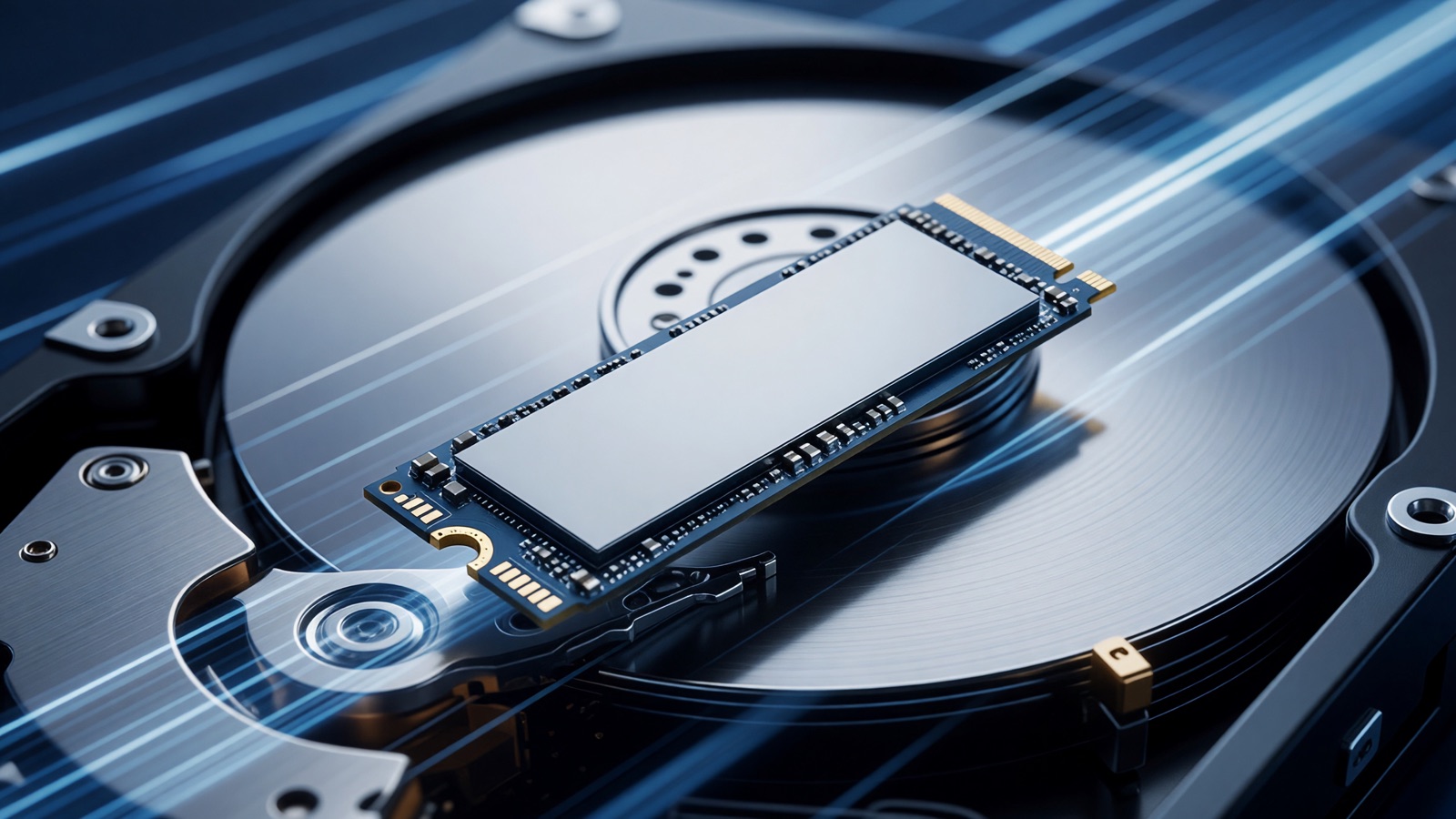
A hard disk stores data on magnetic platters that spin. A head has to move to the right track, wait for the right sector, then read. That wait is tolerable when you copy one large video in a straight line. It is miserable when the operating system, a browser, and a spreadsheet all want different small files at once.
A solid-state drive keeps data in flash chips. There is no platter and no head. The controller can pull many small pieces at the same time. That is why a cheap SSD can make an older CPU feel usable, and why a faster NVMe stick often does not change mail and documents as much as people expect.
HP’s comparison page still puts the everyday gap in plain numbers. Treat these as typical bands, not a promise for your exact PC.
| What you notice | Typical HDD | Typical SSD |
|---|---|---|
| Boot to a usable desktop | 30 to 40 seconds | 10 to 15 seconds |
| Heavy app launch | 30 to 40 seconds | 10 to 15 seconds |
| Sequential transfer | 30 to 150 MB/s | 500 to 3,500+ MB/s |
A 2018 Principled Technologies test on mainstream Windows 10 laptops is older than I would like. The pattern has not flipped. Fast startup averaged 47.4 seconds on hard disks and 16.1 seconds on SSDs. Excel took 3.4 seconds versus 2.2. Waking from standby took 8.9 seconds versus 2.5.
PCMag notes a typical spinning drive will not exceed about 250 MB/s sequential. A basic SATA SSD routinely doubles that. PCIe 5.0 drives can post five-figure MB/s. Those last figures are copy speed. Daily Windows is mostly tiny random reads. The jump you feel is HDD to any SSD. SATA to the newest NVMe is a smaller change for mail and documents.
I would not put Windows on a spinning disk in 2026 if I had a choice. The extra terabytes do not pay you back at 8 a.m.
Is a 256GB SSD better than a 1TB hard drive?
For the drive Windows lives on, yes. Capacity on the box is the wrong comparison for a system drive; access time is the one that decides how the machine feels. Put the operating system on flash and keep the bulk somewhere else.
People shop by the number on the box. A 1TB hard disk looks like the grown-up option next to a 256GB SSD. For the system drive, that comparison is usually backwards.
Engadget put it cleanly in September 2026: pick the 256GB SSD as the main drive if that capacity actually covers what you keep locally. Pick the 1TB HDD if 256GB would have you deleting files every week, and if space matters more than speed.
Windows 11’s official floor is 64GB of storage. That is the install minimum, not a comfortable daily disk. 256GB clears the floor. It is workable if you browse, write documents, stream video, and keep photos in the cloud. It gets tight if you keep a local photo library, several large games, or video projects on C:. Engadget’s current laptop advice treats 256GB as a workable minimum and 512GB or more as the point where local files stop being a chore.
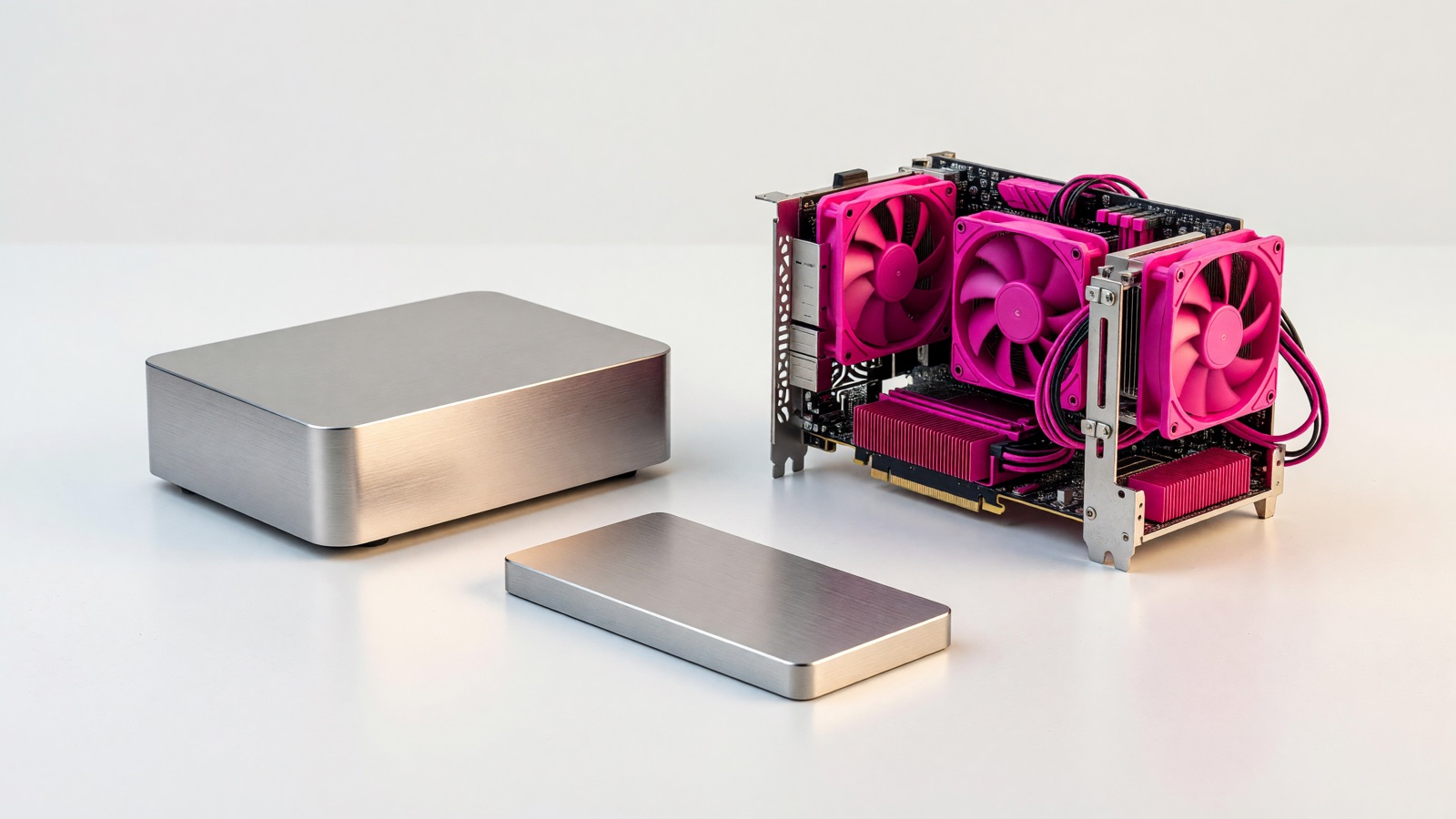
The connector matters before you buy. Older machines often take a 2.5-inch SATA drive. Newer boards want M.2 NVMe. Match the bay. I am not naming a brand.
If the PC only has one drive bay, I would take the smaller SSD and move photos and video off the machine. A fast 256GB disk with a cheap external archive beats a 1TB platter that makes every click wait.
On 14 September 2026 I saw 1TB internal SATA SSD listings on Amazon from about $115 to about $320, depending on the label on the box. That is a spread, not a street price you can take to the store. Do not wait for a magic number. Buy enough flash for Windows and the apps you open, then stop.
When is a hard disk still the right choice?
When the files just sit there. Archives, backups and the pile you almost never open are all fine on a platter, and the cost per terabyte is still on the hard disk’s side.
Hard disks are not dead. They are the wrong place for the operating system. They are still a reasonable place for the pile you almost never open.
That pile is photos, ripped video, old PDFs, a game library you are not playing this month, and a backup of the SSD. Those jobs care about dollars per terabyte. They do not care if a random read takes milliseconds.
Engadget’s September 2026 external-drive piece is useful because that is how most people add a second disk now. A typical external hard disk hovered around 100 MB/s. An external SSD easily hit 500 MB/s or more. At the time of writing, Amazon had a Samsung T9 1TB portable SSD around $232 and a Seagate 2TB portable hard disk at $130. You get less space per dollar with flash no matter how you cut it. Around 4TB and up, the SSD price gets ugly fast.
On 14 September 2026, StorageDiskPrices ranked in-stock desktop USB hard disks. An 18TB desktop unit listed at $459.99, about $26 per terabyte. A 10TB WD Elements desktop drive listed at $287.82, about $29 per terabyte. Those are live retail rows, not a promise they will be there next week.
Backblaze’s 2025 year-end report put the annualized failure rate of its data-center hard disks at 1.36 percent across 344,196 drives, down from 1.55 percent in 2024. Q1 2026 sat at 1.24 percent. That fleet is not your laptop. It does show that spinning disks still run for years when they sit still in a rack. A backpack is a different environment.
I still keep a USB hard disk on a shelf. It is slow. I plug it in for backups and I do not care. I would not boot Windows off it.
Are hard drives a problem in a laptop?
More than in a desktop. A tower can hide a vibrating drive under a desk; a laptop carries it around in a bag. Moving parts and movement are a bad combination.
Desktops can hide a loud, vibrating drive in a tower under the desk. Laptops cannot.
A hard disk has platters and a head. Drop the bag, knock the table, leave it in a hot car, and you are betting those parts still line up. SSDs have no platters. They still fail. They just do not fail by a head slap. They also run silent, which you notice on a video call. HP and Engadget both treat the lower power draw as a real difference on battery.
If you carry an archive between home and work, spend the extra money on an external SSD. If the drive lives on a shelf and you plug it in once a week, a desktop USB hard disk is the cheaper shelf.
Do not treat “SSD lasts longer” as a law. Flash cells wear as you write. For mail, photos, and a browser, consumer drives are usually replaced for capacity or a whole new PC before they hit a write rating. I have not audited a specific model’s terabytes-written figure for this piece, so I will not quote one.
What should I buy if my laptop has only one drive slot?
Keep the SSD and add an external disk for the overflow. On most current laptops that decision has already been made for you, and swapping flash for a platter to gain capacity is a downgrade you will feel every day.
Open the back panel of a thin laptop bought in the last few years and you find one M.2 slot and a battery occupying the space where a second bay used to go. There is nothing to split. The only question left is where the archive lives, and that answer sits on the desk rather than inside the case.
Desktops still let you split the job. Put Windows, apps, and current work on the SSD. Put the archive on a 3.5-inch hard disk inside the case, or on a USB desktop drive next to it.
A SATA SSD is enough for that first job. Consumer SATA drives commonly advertise about 500 to 560 MB/s sequential read. Samsung’s 870 EVO listing, for example, says up to 560 MB/s. That is already several times a spinning disk. NVMe is faster. For email and Office it is rarely the upgrade you feel after you have already left HDD behind.
PCMag’s current take is blunt: hard disks are slower, which is why they are no longer used as boot drives. Use them as a second disk. Skip the tiny SSD that fills up in a month, and skip the huge hard disk as the only drive in the machine. Everyday use is opening things. Storage you never wait on can live somewhere slower.
Frequently asked questions
How much faster is an SSD than a hard disk?
HP’s comparison puts hard-disk transfer at 30 to 150 MB/s against 500 to 3,500+ MB/s for an SSD, and boot time at 30 to 40 seconds against 10 to 15 seconds.
Is a 256GB SSD enough for Windows?
Windows 11’s published storage minimum is 64GB, so 256GB leaves room for the system and normal applications. Media libraries belong on a second drive.
Do people still use hard disks as boot drives?
PCMag’s comparison notes that hard disks are no longer used as boot drives on current machines. They remain reasonable secondary storage.