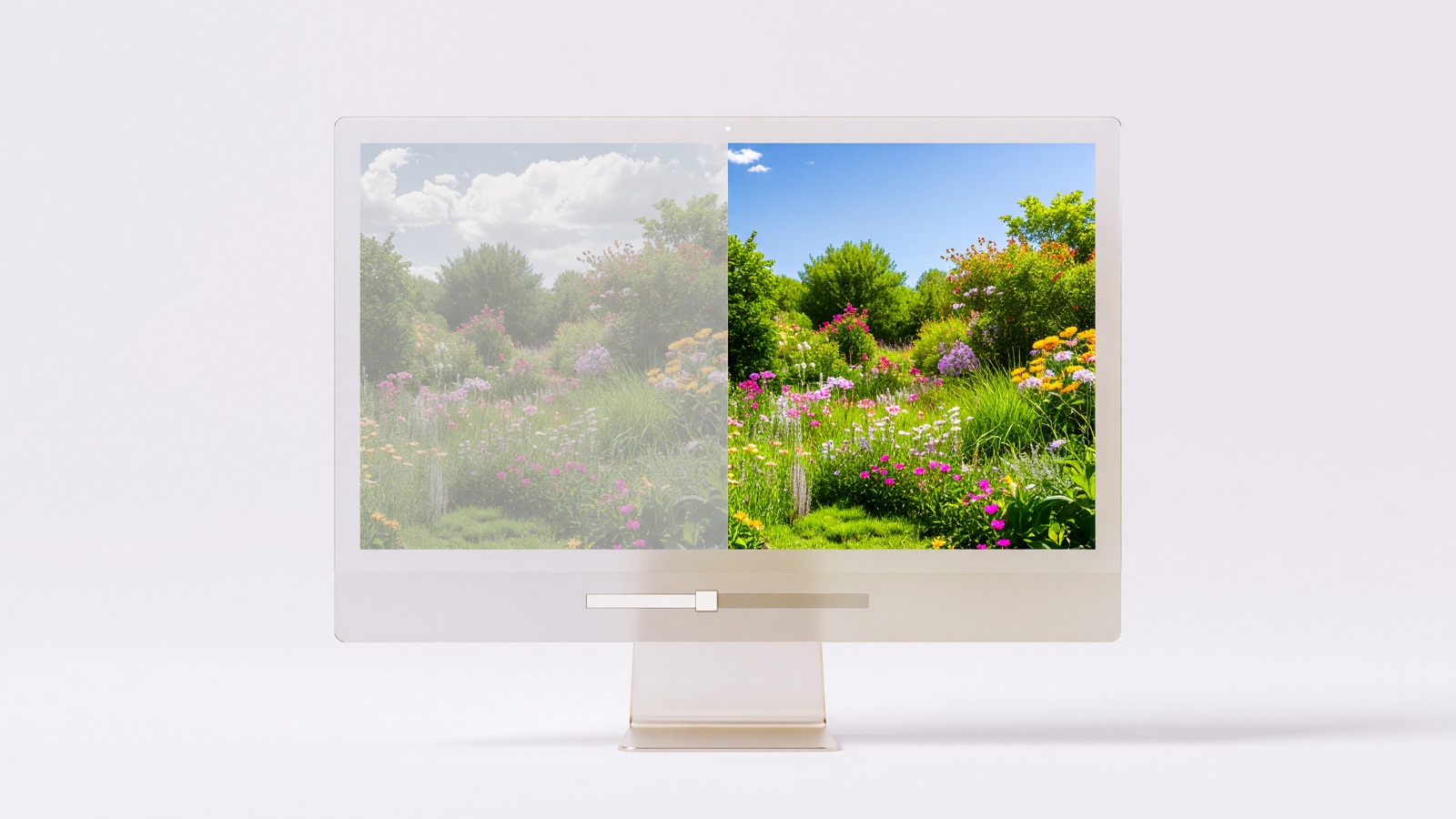
Your screen can look gray the moment you turn on HDR, even though the game you bought the monitor for looks fine. On an external monitor, first adjust SDR content brightness in Settings > System > Display > HDR. If actual HDR video or games still look wrong, calibrate that display and check the app and monitor separately.
Why does the Windows 11 desktop look washed out with HDR on?
Windows has to show ordinary SDR windows on an HDR display, and their brightness balance can be off. Select the affected monitor in Settings > System > Display, open HDR, and adjust SDR content brightness while viewing a familiar webpage and a dark photo. A pale browser window alone does not mean your HDR game is broken.
If a white document and a dark holiday photo both look veiled, move Settings to the screen you’re adjusting. Make small changes and compare those same images each time. Microsoft describes the control’s scope: “On an external HDR display, this setting will change the brightness of SDR content relative to HDR content.” It balances SDR and HDR brightness; it cannot fix a weak panel or a badly mastered video. Microsoft’s HDR settings guide explains the separate controls.
On a built-in HDR laptop screen, you may instead see HDR content brightness. Microsoft says SDR brightness there is controlled separately or automatically, while this slider changes HDR relative to SDR. Set ordinary display brightness to a comfortable level, then compare a white page with an HDR clip. Raising both controls won’t necessarily give you darker blacks. Plug in the laptop while testing: its manufacturer may turn HDR off on battery, which would change the display mode between comparisons. Microsoft documents the battery behavior.
If one old desktop app is dark but a browser looks normal, check another app before recalibrating the whole screen. Microsoft’s troubleshooting guide says some SDR applications do not work correctly with the SDR/HDR balance setting. It suggests moving such an app to an SDR monitor, adjusting the relevant brightness slider, or restarting the app after the change. On a two-screen desk, moving that one stubborn window is a more informative test than resetting your graphics settings.
A color cast is also worth separating from a brightness problem. If the picture gets redder at night, turn off Night light temporarily in Settings > System > Display. Microsoft lists its red tint among HDR color troubleshooting checks. Some laptops change brightness and contrast according to onscreen content, too. If the display pulses when a video cuts from a dark room to daylight, Microsoft’s brightness guide explains the Change brightness based on content control. Turn it off briefly to diagnose the swing, bearing in mind that adaptive brightness can save power.
For ordinary browsing, compare HDR off and on using the same page and monitor picture mode. The page you’re viewing may be SDR content. If SDR mode looks better for office work and HDR mode looks better for an HDR film, you can switch between them. A white spreadsheet looking better in SDR does not by itself mean HDR calibration failed.
How do you calibrate HDR in Windows 11 without crushing the picture?
Run the Windows HDR Calibration app full-screen on the display you use for HDR, with HDR switched on. After the dark- and bright-detail patterns, check a real HDR scene. For a gray SDR desktop, you still need the separate SDR content brightness control.
Microsoft describes three patterns that assess the darkest visible detail, the brightest visible detail, and maximum display brightness. Its instruction is specific: “While you’re calibrating your display using the three test patterns, drag the slider until the test pattern is no longer visible on each screen.” Install the app through the Microsoft Store link on the Windows HDR Calibration support page, not through a random driver download page. The app also offers a saturation control. Leave it modest until you have compared familiar skin tones and colors; pushing it right can make a gray-looking desktop merely look oversaturated.
Keep your usual monitor HDR picture mode and room lighting. In a shot with a bright window and dark furniture, check whether you can see detail outside and in the furniture. This visual check does not measure peak luminance. Note the display and picture mode before changing them; switching presets later may leave the saved profile mismatched to the monitor’s current setup.
A laptop has a useful exception. Some built-in displays support HDR video playback without supporting HDR games and apps. Microsoft directs those users to Settings > System > Display > HDR > Display calibration for HDR video. That tool’s sample scene contains snow and buildings. For a bright scene whose highlights wash out, move its slider right; for lost detail in dark buildings, move it left. Those directions belong to this built-in-display video tool, not to every calibration slider. If the result is worse, it has a Restore default option. See Microsoft’s built-in HDR video calibration instructions.
Don’t copy another monitor’s peak-brightness number into the calibration app. Models with the same marketing badge can behave differently, and tone mapping can change how the test pattern looks. Your monitor has not been measured here. If the new calibration looks worse, compare a known scene and revisit the profile; Microsoft’s app page explains removal through Color Management. Remove only the profile you just created, leaving unrelated factory profiles alone.
Why does an HDR game or video still look flat after the desktop is fixed?
Confirm that the particular game or video is supplying HDR before touching more global sliders. An SDR movie does not gain HDR mastering because the Windows switch is on. Check Windows HDR for the correct screen, the monitor’s HDR mode, and that game’s or player’s own settings; compare more than one piece of content.
If a game’s loading screen looks bright but its first dark corridor is milky, check the in-game HDR toggle and calibration. See whether the monitor’s on-screen menu reports an HDR input; an “HDR Effect” picture preset may only simulate contrast for SDR content. If another native HDR game looks right on the same monitor, check the troublesome game’s settings before recalibrating Windows. HDR controls differ by game, so an in-game peak-brightness setting is unverified until you inspect your title.
For a game without native HDR, test Auto HDR independently. Microsoft says it can expand color range and brightness for older SDR games, including titles using DirectX 11 or DirectX 12. The switch appears under Settings > System > Display > HDR after you select the HDR-capable display and expand the HDR section. Compare the same corridor with Auto HDR on and off. If only the converted image looks strange, leave Auto HDR off for that game. Native HDR and Auto HDR are different cases; a fix for one need not improve the other.
For streaming video, check whether the player identifies the particular clip as HDR. Microsoft lists codec and protected-content requirements, and providers may impose their own app and plan requirements. If snow looks blown out in one app while two games look normal, check the app or source first. If every genuine HDR source looks gray, investigate the signal path instead.
What should you check when HDR remains gray across every app?
Check the selected display, its HDR capability, its on-screen HDR mode, and the connection before buying a new cable or monitor. A calibration profile cannot create deep blacks and bright highlights the panel cannot show. Try a direct, supported connection if you normally use a dock, and compare more than one HDR source.
A common laptop-and-TV snag is display duplication. Microsoft’s HDR troubleshooting page says HDR is not supported in the duplicated-display configuration it describes; choose Extend these displays, select the external screen, and look for its HDR toggle again. If colors go wrong specifically over HDMI and both devices support HDR through DisplayPort, the same guide suggests trying DisplayPort. It also recommends updating the graphics driver. A successful direct connection can narrow the problem to the dock or adapter, but it does not prove which component is defective.
Before interpreting a certification logo, read the model’s exact designation and certification version. The following are selected VESA DisplayHDR CTS 1.2 minimum test levels, not measured results for your monitor and not Windows slider settings. The small-patch and sustained full-screen tests use different patterns; VESA publishes more requirements for black level and color, too. VESA’s published criteria give these values:
| DisplayHDR tier (CTS 1.2) | Minimum 8% center patch (cd/m²) | Minimum sustained full screen (cd/m²) |
|---|---|---|
| 400 | 400 | 320 |
| 500 | 500 | 320 |
| 600 | 600 | 350 |
| 1000 | 1000 | 600 |
These tiers do not tell you whether your individual screen reaches the listed figures in the particular picture mode you chose, or whether its dark scenes look good to you. An “HDR-compatible” claim without a verified tier tells even less. If the screen’s HDR mode remains flat across genuine HDR sources after you check brightness balance, calibration, and the connection, seek an independent review of that exact model before spending money on replacement hardware. Your model’s real peak brightness and black level remain unverified here.
What else do people ask about washed-out HDR in Windows 11?
Start with a scene you can reproduce. An external SDR desktop uses a different brightness control from a built-in laptop’s HDR video. A monitor badge cannot diagnose what is happening in an individual game. Change the control that matches the pale picture you’re seeing.
Should I leave HDR enabled all day?
You don’t have to. If the browser and office windows look pale but a genuine HDR film looks better, use SDR for office work and HDR for the film. Compare the same content on the same screen before deciding. Microsoft’s HDR settings guide distinguishes the external SDR brightness balance from the HDR picture itself; one permanent switch position need not suit both tasks.
Why doesn’t the SDR brightness slider fix my HDR laptop screen?
Built-in HDR screens can use a separate HDR content brightness slider while normal laptop brightness governs SDR or changes automatically. Select the built-in panel in Display settings first, plug in the laptop, and compare a white page with a real HDR clip. If the clip changes but the document does not, you may be adjusting precisely the HDR side of the balance, as Microsoft explains.
Does a DisplayHDR 400 badge guarantee a dramatic HDR picture?
No. The VESA CTS 1.2 criteria specify minimum results across different tests, including a small bright patch and a sustained full-screen image. That does not tell you how a specific unit looks in your room or which monitor mode is selected. Check the exact certified model and version; if a game still looks gray, compare another HDR source before blaming the badge alone.
Will turning saturation all the way up repair a washed-out game?
Probably not. The Windows HDR Calibration app offers a saturation adjustment, but more color does not restore clipped highlights or prove a video is HDR. First check the game setting, monitor HDR mode, and the display’s brightness balance. Then compare familiar colors after a small change. Microsoft’s calibration instructions warn that excessive saturation can look unnatural.