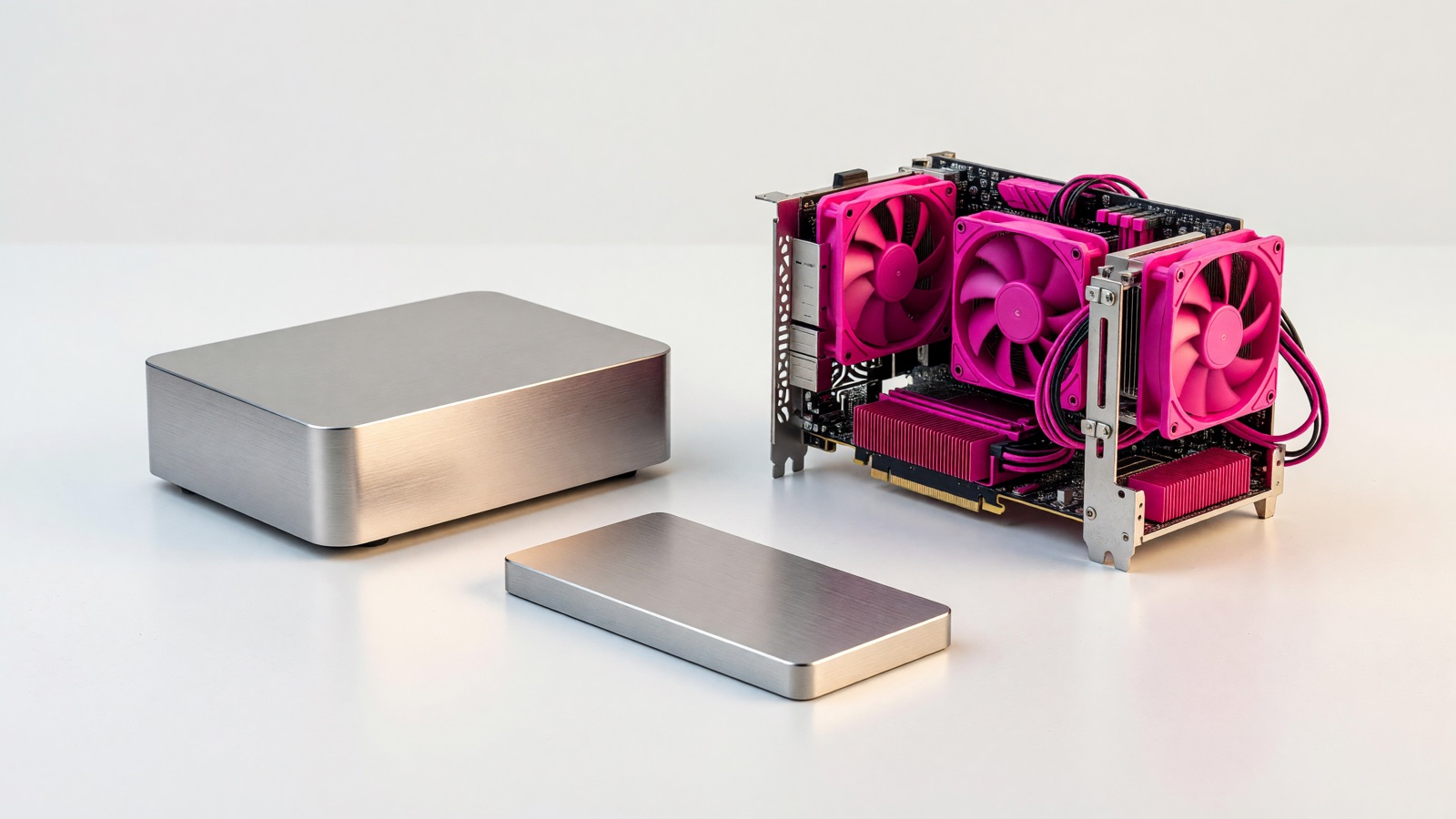
Your photo library is moving to a NAS, and the cheaper drive looks identical on the shelf. Choose CMR for the drives inside a home NAS, especially a mirrored, RAID, or ZFS pool. An SMR drive may suit a separate archive that is rarely rewritten, but sustained writes can be unpredictable in a working pool.
Which recording method belongs in a home NAS?
For a NAS that holds family photos, laptop backups, and a media library, choose a confirmed CMR model. Everyday file copies may hide the difference. Replacing a failed drive, however, can require hours of sustained writes, so CMR is the simpler default when you cannot predict the next maintenance job.
CMR, or conventional magnetic recording, lays down tracks without overlapping their neighbors. SMR, or shingled magnetic recording, overlaps tracks to pack data more densely. Changing existing data on an overlapping track can require additional internal rearrangement. A device-managed SMR drive hides much of that housekeeping from the NAS and may use a staging area to absorb writes until it can reorganize them. That can work well for short bursts followed by idle time; it is less comfortable when writes keep arriving. ServeTheHome’s explanation of the mechanism describes both the track overlap and the potential exhaustion of a staging area, while acknowledging that Western Digital had not disclosed the specific mitigation in the tested drive.
SMR can still serve movies: a home media server may spend long stretches reading files. A mostly sequential archive also places different demands on a drive than a busy storage pool. CMR does not protect data from deletion or a failing controller. Choose between these recording methods for their write behavior under stress, not as a guarantee against failure.
| Home-storage situation | CMR choice | SMR trade-off |
|---|---|---|
| Mirrored or parity-protected NAS pool | Preferred for more uniform write behavior during replacement and recovery | May incur lengthy, workload-dependent maintenance writes; particularly avoid unverified models for ZFS |
| Frequently changing photo, backup, or application files | Sensible default for repeated updates | Background housekeeping can compete with new writes |
| Separate, mostly write-once archive with plenty of idle time | Works, though it may not be the cheapest option | Can be reasonable if the exact model and backup workflow are acceptable |
Use the table to match a drive to its workload; it is not a performance rating or a compatibility guarantee. Western Digital distinguishes its SMR WD Red from CMR WD Red Plus and Pro. Its support page says, exactly, “The WD Red Plus and WD Red Pro are CMR drives.” It says ordinary WD Red SMR drives prefer idle time for background work and recommends the CMR Plus or Pro lines for ZFS. Seagate’s IronWolf product page describes IronWolf NAS drives as built with CMR technology. Check enclosure compatibility separately; neither maker description guarantees it.
Why can a rebuild turn an apparently fine SMR drive into a bottleneck?
Suppose a disk fails while the NAS is still serving files. After you insert a replacement, the system must reconstruct the missing contents alongside ordinary activity. That leaves an SMR drive little quiet time for internal housekeeping. Its speed on a short file copy tells you little about recovery.
A rebuild, or ZFS resilver, is not the same as streaming an already stored film. A replacement receives a sustained stream of writes, often while the other disks are busy reading and the household is still uploading files. Western Digital explains that sustained random writes during ZFS resilvering leave device-managed SMR drives too little idle time for internal data-management tasks. Its page also says an SMR WD Red can be similar to, or slightly slower than, CMR in a RAID rebuild, depending on drive condition and rebuild extent. Those statements describe different contexts; neither is a measured guarantee for your own pool.
The TrueNAS compatibility notice is more specific about a historical ZFS case. Its authors reported that random-write performance and resilvering can suffer on SMR drives, recommended CMR for more uniform performance, and identified a compatibility issue with one WD Red WD40EFAX firmware revision under heavy ZFS writes. That is not proof every SMR disk or every NAS filesystem will behave identically. It is a reason not to treat a drive’s NAS label as proof that its recording method suits your filesystem and recovery plan.
A slow rebuild leaves the array with less redundancy than normal until recovery completes, though the delay is not itself data loss. The duration of one lab test cannot predict yours: occupied capacity, filesystem, replacement-drive history, background load, firmware, and NAS behavior all matter. Keep an independent backup of irreplaceable files, even if the pool uses RAID.
What do independent tests actually show—and what do they not?
In a stressed ZFS replacement test, an SMR WD Red looked plausible in short benchmarks but took far longer to finish the resilver than CMR competitors. The testers kept the array in use during recovery, as it might be while someone copies vacation footage. Use the result to understand a possible bottleneck, not to predict your NAS’s recovery time.
ServeTheHome’s 2020 test method compared a WD Red WD40EFAX SMR replacement with WD40EFRX and other CMR drives in a FreeNAS RAIDZ array. The drives were preconditioned with writes and deletion; the array was also read from and written to during recovery. That matters because it tested a demanding, busy-pool scenario, not a fresh empty disk running an isolated sequential benchmark. On its results page, the reviewer writes, exactly, “While all three CMR drives comfortably completed the resilver in under 17 hours, the SMR drive took nearly 230 hours to perform an identical task.” The publication says it repeated the SMR test with another disk and saw similarly slow resilvering; the process did complete without errors in that test.
| ServeTheHome’s specific RAIDZ replacement test | Reported completion time | What the comparison establishes |
|---|---|---|
| Three CMR candidates, each replacing a drive | Under 17 hours each | These candidates completed this stressed recovery relatively quickly |
| WD Red WD40EFAX SMR replacement | Nearly 230 hours | This tested model performed much worse under the same recovery task |
Those are observations from that test, not generic CMR-versus-SMR specifications. The reviewer used a particular 2020-era WD Red model, preconditioning sequence, firmware, filesystem, and workload; a different RAID implementation or a newly unpacked drive might yield a different gap. Short individual-drive benchmarks in the same review looked much closer, which explains why an ordinary desktop speed test can miss the failure-mode concern. Avoid the misleading leap from “one SMR replacement was extremely slow in RAIDZ” to “all SMR disks always take this long” or “a CMR disk cannot fail during recovery.”
Before buying, consider the jobs beyond everyday file copies. Will the pool be rebuilt, expanded, scrubbed, or repeatedly updated by backups? Can the household tolerate slower performance during those jobs? If you cannot test recovery yourself, a verified CMR model is the safer default than an ambiguously described SMR listing.
How can you check the exact drive before ordering or replacing one?
Start with the full model number rather than the color on the box. If a store lists only “NAS HDD,” find the manufacturer’s datasheet for that exact SKU before checkout and confirm its recording technology. Also check the enclosure maker’s compatibility guidance for your NAS model and current software version.
Western Digital’s identification instructions explicitly direct owners to the drive label or datasheet. Its WD Red support article distinguishes the ordinary WD Red SMR line from WD Red Plus and Pro CMR. Seagate describes IronWolf as CMR, but still advises checking the NAS maker’s compatibility list. Do not infer today’s recording method from an old model-number shortcut, the amount of cache, the word “NAS,” or the recording method of another capacity in the family. Labels and listings can omit the property that matters.
Record the seller’s complete SKU and compare it with the manufacturer’s current sheet. Check the interface, physical size, and supported capacity against your NAS, then consult the NAS vendor’s drive policy. For example, Synology’s DSM 7.3 compatibility policy distinguishes product series and whether an HDD is listed, unlisted, or incompatible on models released from 2025 onward. A rule for one series may not apply to every Synology box. If the listing remains ambiguous, ask for the exact SKU or choose a clearly documented drive.
Once installed, keep the receipt and model record with your maintenance notes. If an existing pool contains an SMR model, there is no need to pull a healthy drive without a plan: verify a separate backup first, inspect the pool’s health, and follow the NAS vendor’s supported replacement procedure one drive at a time. Swapping hardware casually can be more dangerous than living briefly with a known limitation. Above all, Synology’s backup guidance warns that RAID failure and drive failure can still cause data loss and recommends another backup destination.
FAQ: What else should a home NAS owner know?
For a home NAS, use CMR in the working pool, verify each full model number, and keep a separate restoreable copy of important files. A single-disk archive, a mixed pool, and an existing SMR drive each call for a closer look at the workload and recovery plan.
Is SMR ever acceptable for a home backup?
Yes, potentially as a separate, mostly sequential archive with infrequent rewrites and enough idle time, provided you can tolerate variable completion times and have another copy of important files. That does not make an SMR disk a good default inside a redundant NAS pool. Western Digital’s workload description specifically mentions home backups and content archiving as light-duty uses; test restores, not only backup writes.
Can I mix CMR and SMR drives in the same array?
Do not assume the mix is forbidden everywhere, but do not buy an SMR replacement expecting the CMR disks to erase its write bottleneck. The ServeTheHome replacement test inserted an SMR disk into an otherwise CMR RAIDZ array and found a much slower resilver. Check the NAS vendor’s exact support rules and maintain a backup before any replacement; the test does not establish behavior for every RAID implementation.
Will SMR make movie playback stutter?
Not necessarily. Reading a stored movie is different from repeatedly rewriting blocks or rebuilding a degraded pool. ServeTheHome’s initial read and short benchmark observations looked much less alarming than its resilver result. If the box also ingests photos, runs backups, or rebuilds while someone streams, those simultaneous duties change the experience. Choose for the whole workload rather than a single playback demo.
Should I immediately replace an SMR drive I already own?
Identify the model, back up the data, and review pool health and the NAS maker’s replacement instructions. Do not remove a working disk impulsively from a degraded array. Plan a CMR replacement if the pool is ZFS, handles frequent writes, or needs predictable recovery; otherwise decide at a safe maintenance window. TrueNAS’s notice concerns specific historical WD Red models, not every SMR drive.