
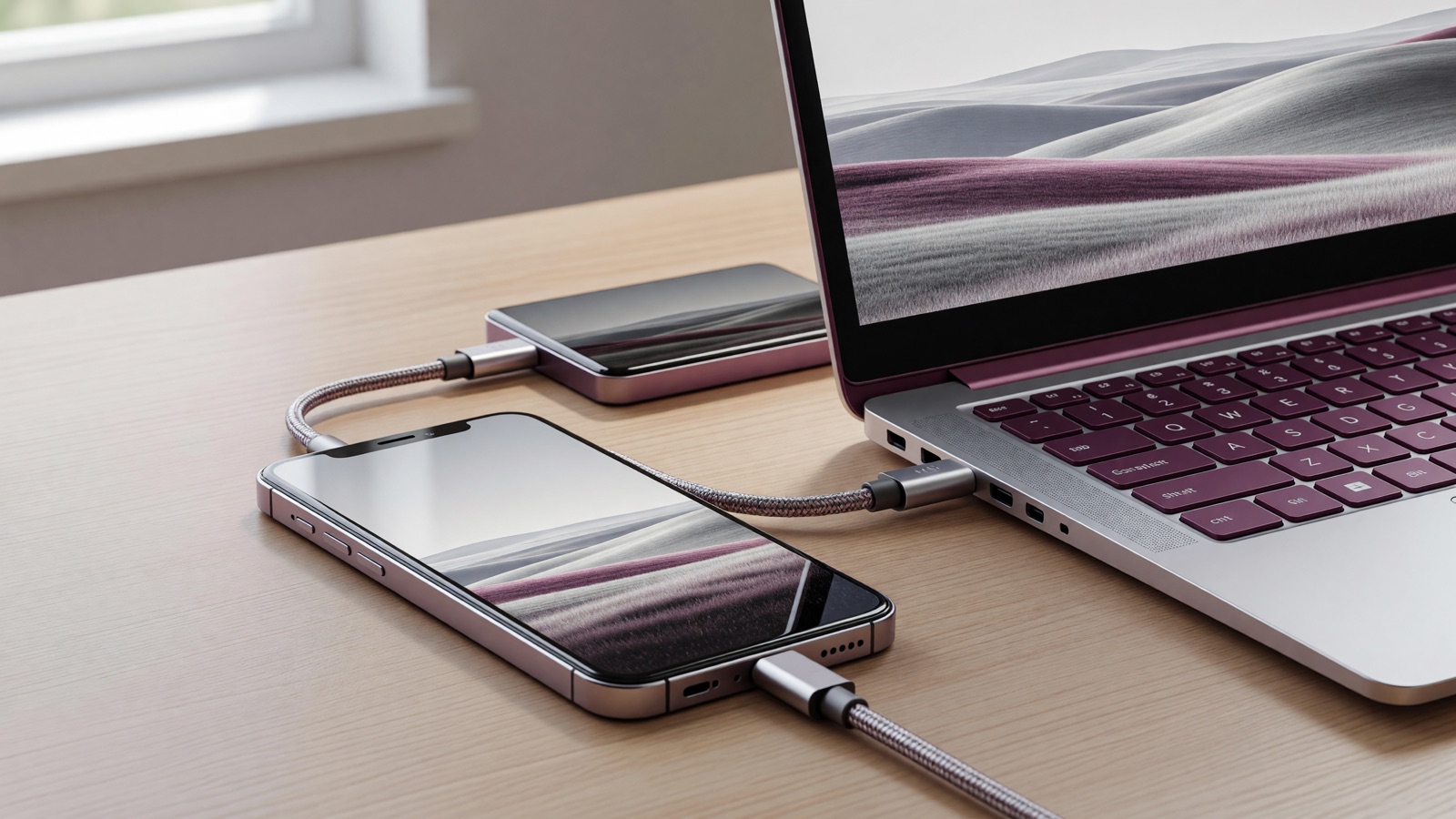
Copy the photos somewhere that is not the same iCloud or Google account, then open a file from that second copy before you delete anything on the phone. Those apps are sync, not a spare. Delete one shot and it leaves every signed-in device. A cable dump to a laptop or a USB-C SSD is the extra copy.
If a buyer wants the phone wiped soon, check the copies first. Google Photos’ Free up space may leave the stock camera roll looking empty even though photos.google.com still has the files. If you factory reset and later lose access to the Google account, that album is gone.
Is iCloud Photos a backup or just a sync?
It syncs one library across devices on the same Apple Account. Delete a photo on the phone and Apple removes it from the Mac and iCloud.com too. If iCloud Photos is on, an iCloud Backup of the phone does not keep a second set of those files.
Craig Grannell writes in Amateur Photographer: “It’s important to know this is sync, not backup.” Apple Support says: “When you delete photos and videos on one device, they’re deleted everywhere that you use iCloud Photos.” Recently Deleted gives you 30 days to undo the deletion. After that, Apple says you cannot get them back.
With iCloud Photos on, the originals live in iCloud and the phone often keeps smaller versions. Turn on Optimize iPhone Storage and the device drops full-resolution files when it needs room while still showing thumbnails. That does not create a second library.
Apple also says the device backup does not double-store the album. On the same page: “They’re not duplicated in your iCloud backup, so keep backup copies of your library.” Make a separate copy before you sell the phone.
Google Photos also syncs deletions made inside the app. A swipe in the grid removes the item from the cloud library, not just the handset. The separate Free up space on this device button drops local files after a backup. Google’s help page says: “This feature deletes photos from your device.” Clips newer than 30 days may stay on the phone. Other uploaded files may disappear from the stock gallery.
If the buyer is waiting, do not “clean” the camera roll in the same app that holds the only remaining files.
How do I copy iPhone or Android photos to a computer without shrinking them?
Use a cable, unlock the phone, tap Trust, and import through the computer’s photo app. On a Mac, use Photos. On Windows, install Apple Devices from the Microsoft Store, then import with Microsoft Photos. If iCloud Photos is on, download originals to the iPhone first so the PC gets full-resolution files rather than smaller copies.
Apple’s transfer page says: “If you have iCloud Photos turned on, you must download the original, full resolution versions of your photos to your iPhone or iPad before you import to your PC.” Go to Settings, your name, iCloud, Photos, then Download and Keep Originals. Wait until the Photos app stops saying it is downloading. A large library may take longer than expected on hotel wifi.
If the Android files are in DCIM, plug in USB, choose File Transfer, then open the phone in File Explorer or Finder and copy DCIM and Pictures. Leave the phone unlocked. If the screen locks mid-copy, the destination folder may be incomplete.
Check the file format too. iPhone stills often save as HEIF. A Mac opens them, but a Windows PC may show blank tiles until you add Microsoft’s HEIF Image Extension. Avoid uploading the family album to a random “HEIC to JPG” website. You can lose EXIF and replace the original with a new JPEG. If you need JPEG, export a copy and keep the HEIC.
Live Photos and Android Motion Photos flatten easily. A Finder copy of the still can drop the paired video. Google Photos, if you uploaded at Original quality, keeps the motion in the cloud. A drag of the whole DCIM folder usually keeps both files. Cherry-picking JPEGs from a preview pane does not.
Avoid saving 4,000 photos individually through the share sheet. Dates can be rewritten, and the Hidden album will not come along.
After the copy, eject the phone. Open the folder on the computer. Sort by size. If the biggest files are a few megabytes and you shoot 4K, you copied previews.
Can I plug a USB-C drive into the phone and skip the laptop?
Yes, if the phone can power the drive. On a USB-C iPhone, open Photos, select, Share, Save to Files, pick the drive. On many Galaxy phones, My Files copies to a USB stick or a microSD card. Skip the laptop that way. Locked Folder, Hidden, and Samsung Secure Folder still need a separate export.
Samsung says it in a support note: “Media that is stored in Secure Folder cannot be transferred using these methods.” Forbes, writing about Google Photos and phone switches, warned about Apple’s Locked Folder the same way. Cable tools and Move to iOS do not see it. You open Locked Folder yourself, move those shots into the main library or onto a computer, then check photos.google.com/lockedfolder if you used Google’s vault.
Check whether the phone can power the drive. A spinning USB hard drive will often fail on a phone, while a small SSD that draws little current usually works. If the drive disconnects at 40 percent, the copy is incomplete. Copy again, then open three files from different years on a second screen.
Make a computer copy as well when possible; a drive in a drawer can get lost.
microSD is fine on phones that have a slot. Copy, then read the card in a computer. Do not leave the only copy in the phone you are about to reset.
What does Google Photos Storage Saver actually do to my files?
Storage Saver shrinks uploads, and changing the setting later does not restore them. Photos larger than 16 MP are resized to 16 MP. Videos above 1080p are resized to 1080p. Set each phone to Original quality before a large backup if you want to keep the originals. Files already uploaded with Storage Saver stay that way.
Google’s backup-quality page gives those limits. It also says Storage saver photos “may be compressed into a different image format, like a .jpg.” HEIC from an iPhone can land as JPEG. How-To Geek’s 2025 note puts the consequence plainly: “Switch each device to Original Quality to stop future compression, but your past uploads can’t be restored.”
Original quality counts against the 15 GB that Google gives every account, shared with Gmail and Drive. A full inbox plus a year of 4K video blows through that before the baby album finishes. Storage Saver still looks sharp on a phone. Crop a face for a print, or put a 4K clip on a TV, and the missing pixels show.
iCloud Photos does not run that particular shrink. Apple stores HEIF, JPEG, RAW, PNG, GIF, TIFF, HEVC, and MP4 at full resolution in iCloud, per the iCloud Photos page. The limit is quota, not a hidden 16 MP cap. Free iCloud is 5 GB. That fills with one device backup plus Camera.
Paid plans, US list prices from Apple’s iCloud+ pricing page:
| Plan | Storage | US monthly price | What happens to photo quality |
|---|---|---|---|
| Free iCloud | 5 GB | $0 | Full resolution, until the quota fills and uploads stall |
| iCloud+ | 50 GB | $0.99 | Full resolution |
| iCloud+ | 200 GB | $2.99 | Full resolution |
| iCloud+ | 2 TB | $9.99 | Full resolution |
| Google Account (free) | 15 GB, shared with Gmail and Drive | $0 | Original quality, or Storage Saver if that is still selected |
| Google Photos Storage Saver | Uses the same Google quota | $0 extra | Photos over 16 MP become 16 MP; video over 1080p becomes 1080p |
Google One’s 100 GB and 2 TB fees are not listed here because a live US price table from its plans page was not confirmed.
If you want Apple to stay out of the photos, Advanced Data Protection is the optional switch. Apple writes: “No one else can access your end-to-end encrypted data, not even Apple, and this data remains secure even in the case of a data breach in the cloud.” The cost is recovery. Lose the devices, the recovery contact, and the 28-character recovery key, and Apple cannot fish the library out.
Google’s help page adds another timer. If you ignore Google Photos for two years or more, content may be deleted under the inactivity policy. A second copy on a disk you control does not care if you skip the app.
How do I know the copy is real before I factory reset?
Open the destination on a different screen. Pick one photo from years ago and one video from last week. Check the pixel dimensions and the date taken, not the date added. If iCloud.com or photos.google.com is missing a folder, that folder never left the phone. Only then delete local files or erase the device.
Before using the reset slider, check these items:
- Count. Phone says 18,442 items. The computer folder or the web library should be in the same neighborhood. A gap of a few dozen is Hidden, WhatsApp, or Screenshots. A gap of thousands is a failed backup.
- Open a 4K clip. If it plays at 1280×720, Storage Saver or an optimized iPhone copy fooled you.
- Open Locked Folder, Hidden, Favorites, and WhatsApp Images. Copy those on purpose.
- For Google, load photos.google.com on a computer while the old phone is still on. If a trip is missing there, Free up space will not save it.
- For iCloud, check iCloud.com in a browser, not only the phone thumbnails.
Forbes made the same point on Locked Folder: Smart Switch and Move to iOS skip it. Confirm the library in a browser before you wipe.
Keep the old phone until you have opened files from the new location. A week in a drawer gives you time to check. If you already tapped Free up space, the Google Photos app still shows cloud copies while you are signed in. The stock gallery may look empty because local files are gone; check the cloud library before treating that as proof of a backup.
When you do wipe, sign out of iCloud and Google Photos first so the dead phone stops syncing deletes. Then erase. If a delete races a reset, you can empty Recently Deleted on every other device by accident.
What else do people ask before they wipe the old phone?
Before erasing the phone, check how AirDrop handles a large library, what happens when iCloud Photos is turned off, and whether chat-app media is outside DCIM. A disk copy can coexist with Google Photos. An account-level iCloud Photos shutdown can remove the cloud copy after 30 days.
Will AirDrop or Nearby Share move the whole camera roll?
A few dozen photos, yes. The whole library, no. AirDrop was built for a handful of files across a table. A multi-year roll will drop, stall, or sit in a Receives folder with new dates. Use a cable or a completed cloud backup you have already opened on another screen.
If I turn off iCloud Photos, do the pictures stay on the iPhone?
Only if you tell it to download them. Apple asks you to Download Photos & Videos or Remove from iPhone. Remove leaves optimized leftovers, not originals. Apple also says that if you switch the account off iCloud Photos entirely, the photos are deleted from iCloud 30 days after you stop using the service. Download first.
Can I keep using Google Photos after I copy to a drive?
Yes. The drive is the spare. Leave backup on if you want search and sharing. Set Original quality on every phone. Do not tap Free up space unless you have opened files from the drive. The cloud copy and the disk copy should not depend on each other.
What about WhatsApp, Instagram, and screenshots?
They often live outside DCIM. WhatsApp Images, Telegram, and Files/Downloads will not follow a Camera import. Copy those folders too, or you keep the vacation album and lose the group chat from the hospital waiting room. Screenshots sit in their own album. They are easy to skip and easy to need later.


