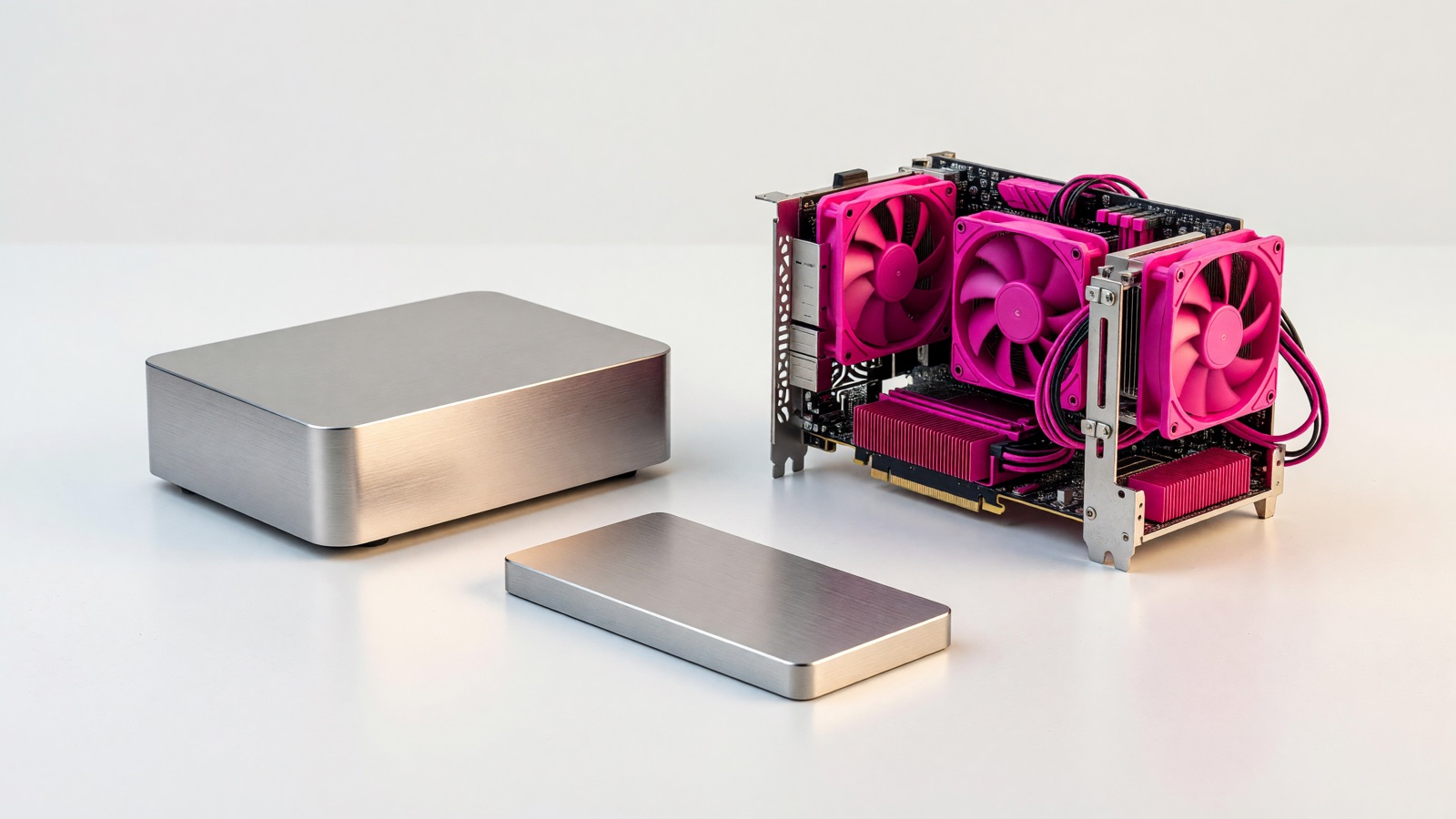
Your laptop is out of photo space, and you want the files available without leaving that laptop on all night. Start with a NAS if shared storage and uncomplicated backups are the main job. Pick a mini PC if you want to run several services and are willing to design storage separately. Neither box replaces a second backup.
A NAS can run apps, and a mini PC can share files. Where they differ is in the work you’ll face when a drive fails, a container update breaks your setup, or a pair of hard drives has to fit beside a palm-size computer. Compare that work before comparing processors.
Should I buy a NAS or mini PC if my family mainly needs shared photos and backups?
If you mainly collect photos from several phones, back up computers, and share files with family, start with a NAS. It has room for the drives and puts file sharing and storage administration in one place. A mini PC can do the same work, but leaves the choice of drives, enclosures, software, and recovery plan to you.
In a household with two phones and a laptop, the immediate job might be copying photos before a trip. Nobody needs to know which operating system hosts the shared folder. A two-bay NAS is suited to that workflow. Synology lists two internal SATA drive bays for its DS225+. Its DSM product page describes photo organization, file sharing, device backups, and file versioning. These are vendor features, not a guarantee that every phone upload completes. Test the app and network before leaving your only copy of a photograph there.
A NAS can do more than share files. Synology’s Container Manager documentation describes containers and Compose projects on supported systems. But resources and model support set limits. Its Virtual Machine Manager specifications say: “Virtual machines can run only on Synology NAS devices with more than 2 GB of memory.” The DS225+ ships with 2 GB, according to its product specification. Check upgrade and package compatibility before buying that configuration for virtual machines.
If you already own a mini PC, you can set up file sharing and scheduled backups without replacing it. Decide where the data will live and how you’ll restore it after a disk fails. A small system drive and an unprotected external drive are convenient, though they lack the arrangement of two accessible internal NAS bays. If you’re only moving a few files between your own devices, an external drive with an independent backup may be simpler than buying a NAS.
Can a mini PC run my apps and store files as well as a NAS?
Yes, provided its storage and software fit the workload. A mini PC can host file sharing, a media library, and other home services. Choose it for control over the operating system and apps; check its actual drive slots before planning a storage pool.
Say you want a local dashboard, a game server for friends, and occasional photo storage. The apps change often; you may want to reinstall the host or try another operating system. A mini PC gives you that general-purpose starting point. A specific ASUS NUC 14 Essential kit supports Windows 11, Ubuntu 24.04 LTS, and Red Hat Enterprise Linux, according to ASUS. That is a compatibility statement for the kit, not evidence that your particular game or container will perform well on its processor.
The case and included parts matter as much as the CPU. ASUS says of that kit, “No memory included at shipment” and also lists no included storage. You must budget for and install both. Its internal storage positions are M.2 SSD slots, not two 3.5-inch bays for hard drives you may want to reuse. Other mini PCs differ, so read the exact model and SKU sheet. Check whether a drive cage, SATA connector, or USB enclosure is included.
A NAS can also host containers, but the phrase “runs Docker” on a product page is not a workload guarantee. Check that your exact NAS model supports the package, how much memory your services need, and what happens to file sharing if an application fills the disk. If a home automation service has become a household dependency, it can be useful to keep experiments on a separate machine while the storage box has a quieter life. That’s an architecture choice, not a benchmark result.
If you choose the mini PC for both roles, write down the recovery sequence before you install apps. Which disk has the operating system? Which one contains the files? If you wipe the system disk during an upgrade, can you reconnect the data and restore permissions? A long-running server feels easy to maintain right up to the day you need to reconstruct it. Test with a disposable folder and a trial restore, rather than discovering the answer after a drive has failed.
Which specs matter when I compare a two-bay NAS with a mini PC?
Compare drive positions, supplied memory, network ports, and the storage software you plan to run. A processor name won’t tell you whether the machine accepts your disks or supports the restore you have in mind. The two examples below show why the other specifications matter.
| Check | Synology DS225+ NAS | ASUS NUC 14 Essential kit (NUC14MNK-B) |
|---|---|---|
| Internal storage described by maker | 2 SATA drive bays for 3.5-inch HDDs or 2.5-inch SSDs | M.2 2280 NVMe slot plus M.2 2242 SATA SSD slot; no storage supplied |
| Memory described by maker | 2 GB DDR4 supplied; 6 GB stated maximum | No memory supplied; 16 GB DDR5 stated maximum |
| Wired network described by maker | 1 × 1GbE and 1 × 2.5GbE | 1 × 2.5GbE |
| Operating-system approach | Synology DSM appliance | Kit with no preinstalled OS; ASUS lists supported systems |
The entries come from the Synology DS225+ specification and the ASUS NUC 14 Essential kit specification. These are manufacturer specifications, not comparable speed or electricity measurements. The memory figures need care: one machine comes with RAM installed, while the other kit ships without it. Neither figure tells you how many of your apps will run smoothly.
If you’re tempted to install TrueNAS on an x86 mini PC, check the operating system’s requirements before buying a barebones kit. The TrueNAS 25.10 installation guide states a minimum of 8 GB RAM and a 20 GB boot device. Its separate hardware guide lists two identically sized devices for a single storage pool. That latter page explicitly labels itself beta documentation for a version later renamed; treat its design guidance as guidance, not a blanket requirement for every storage configuration or current release. A mini PC with only small SSD slots may need an additional storage enclosure to fit the large-capacity disks you had in mind. Check whether your proposed connection and operating system support the recovery arrangement you expect.
Neither the NAS’s two network ports nor the mini PC’s one 2.5GbE port proves your laptop will transfer files at that link rate. Your switch, cable, Wi-Fi, drives, other users, and file sizes also affect transfers. Don’t buy a network upgrade on the strength of a port label alone. If photo uploads from a phone are slow over weak Wi-Fi, try the phone near the router and compare it with a wired computer. The server box may not be the bottleneck.
Don’t compare a power adapter rating with another product’s measured draw. Adapter capacity tells you little about running cost. Synology publishes test conditions and consumption figures for the DS225+, while the ASUS kit page lists a 65 W adapter rather than a comparable always-on measurement. To compare costs, you’d need both configured machines with their drives under similar loads and your electricity rate. Those matched measurements remain unverified here, so neither class can be called cheaper to run on this evidence.
How should I plan backups and recovery before putting everything on one box?
Keep a second, separate copy of important files regardless of which box you buy. A pair of NAS drives can help a storage system stay available after a drive problem, but it won’t rescue files you deleted or encrypted and then synchronized across the array. A mini PC’s extra external disk isn’t automatically a backup either.
Imagine you edit the wrong folder of vacation photos on Sunday and realize it on Wednesday. A mirror may faithfully contain the wrong version. You need a dated copy you can restore, preferably one that a compromised account on the server cannot casually overwrite. CISA’s backup guidance recommends three copies on two types of media with one copy off-site, as well as recovery testing. Its page speaks to businesses, but the separate-copy and restore-test logic is just as useful for a family photo library.
Synology’s Hyper Backup documentation says: “Back up your Synology system to local volumes, external devices, other Synology systems, rsync servers, or public cloud services such as Google Drive, S3 storage, and C2 Storage.” A scheduled job isn’t proof of recovery; restore a sample file somewhere else and open it. If an external backup stays attached and writable, consider whether a mistaken deletion or compromised account could affect it. For a mini PC, choose versioned backup software and a separate destination; test the file and service-configuration restores.
A simple starting layout is one primary machine, one separate backup destination, and a written note describing how to retrieve a file. You don’t need to reproduce an enterprise data center in the living room. You do need to know whether the only family photos are on a disk you plan to format during an operating-system reinstall. Set a calendar reminder to restore a test file after the initial setup and periodically thereafter. The objective is to make a bad Tuesday boring enough that you can recover from it.
What do people ask before buying a NAS or mini PC for a home server?
The choice depends on which job you want to maintain. For shared photos without much OS administration, begin with a NAS and arrange a separate backup. For software you expect to change, begin with a mini PC and budget for storage. The questions below cover a few easy-to-miss limits.
Can a mini PC replace a NAS completely?
It can replace the file-sharing function if you add suitable storage, set up the services, and maintain backups. Look at the ports and bays before ordering. A palm-size kit with only M.2 positions won’t swallow the 3.5-inch hard drives already sitting on your desk. If you’re comfortable running the server software, that limitation may still be manageable with a carefully chosen enclosure.
Is a NAS useless if I want to run containers?
No. Synology documents containers and Compose projects in Container Manager, for example. But check your exact model’s package compatibility and memory, rather than treating “NAS” as a fixed specification. A photo library, backup jobs, and a hungry new app can contend for the same resources. Keep the services you actually need in mind when sizing the box.
Does a two-drive NAS mean I no longer need cloud or external backup?
No. Two installed drives may support a redundant layout, but redundancy and a separate historical copy solve different problems. If someone deletes a folder and the deletion propagates, both drives can reflect that change. Keep another versioned copy elsewhere and try restoring a real file before assuming the backup job works.
Which should I buy first if I don’t know what I want to host yet?
Wait until you can name the first job. If it’s shared family photos, start by mapping storage and backup; a NAS is a reasonable candidate. If it’s experimenting with services, a mini PC is easier to repurpose. You can also start with hardware you own. A trial with nonessential files will teach you more than comparing processors you’ll never use fully.